Create a programming problem
In Yandex Contest, you can create a problem where participants provide a code in a programming language that performs calculations according to the problem statement.
Programming problems are different from the simpler problems:
- A participant's code runs in an isolated virtual environment with specific characteristics.
- The code is called with a specific version of the compiler or interpreter.
- A predefined data stream, usually an stdin stream, is fed as input.
- A specific data stream, usually an stdout stream, is expected as output.
Running a program consumes CPU time and a certain amount of memory, which Yandex Contest measures and may limit. This is especially important for optimal solution problems.
To create a problem like this, you don't need any programming experience. A problem like this can be universal for multiple programming languages.
Example
Implement a program that sums up several integers fed into the standard input stream.
1. Create a problem
- Go to Problems and click Create problem.
- Enter a name and click Create. The name will be displayed in the participant interface.
- Enter a short name. You can also add the name in English.
- In the Problem type field, select
PROBLEM_WITH_CHECKER.
2. Specify the answer type
Select one of the following types:
- Text or file: The solution can be entered in a multi-line text input field or submitted as a file with the answer program code.
- Text: The solution must be entered in a multi-line input field.
- File: The solution must be submitted as a file.
- Single text line: The solution must be entered in one line in the input field (not applicable for some programming languages).
3. Add a problem statement
- Select Statements on the left.
- Select the TeX statement type.
- Select a language: ru for Russian or en for English.
- On the right, click Add statement.
- Click the row with the added statement, for example:
Russian (tex). - Enter the statement in the form and click Save.
For more information on creating problem statements, see Statements.
4. Add tests
Tests are sets of input data and the expected results of executing a program. For example:
Problem: Write a program that sums up multiple integers fed into the standard input stream.

Input data:
5 7
Expected result:
12
Tests are the main element of programming problems. There are several ways to create test files:
- Create tests one by one using the admin panel in the browser.
- Create tests on a computer and then upload the archive with the test files to the problem.
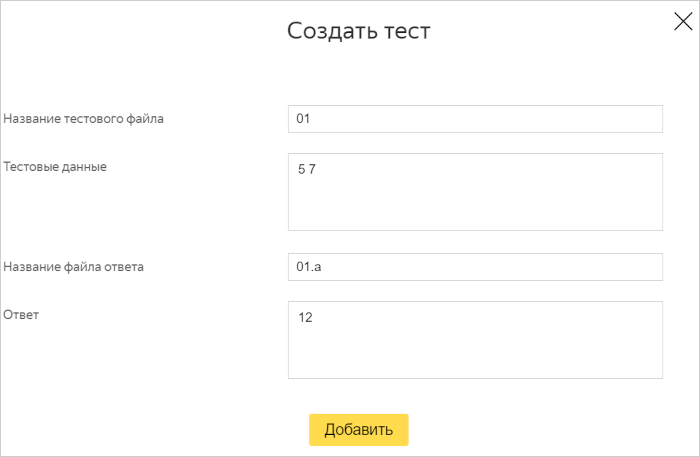
1. In the section on the left, select Tests and solutions and click Create a test.
2. In the Name of test file field, specify a name for the input data file, for example: 01.
3. In the Test data field, specify the input data, for example: 5 7.
4. In the Name of response file field, specify a name for the file with the expected result, for example: 01.a.
5. In the Answer field, specify the expected result, for example: 12.
6. Click Add.
After you fill out the form, it should look like the screenshot below:
Note
You can specify any names for the test and answer files, but we recommend using two-digit numbering and the extension .a for the answer file. This way, you'll need fewer actions when creating test sets.
1. Create all test files on your computer.
Input data file names should be similar to each other and slightly different from the files with expected results. For example, 01 02 03 for files with input data and 01.a 02.a 03.a for files with expected results.
2. Move the test files to the directory. By default, it's tests.
3. Archive the folder.
- Acceptable archives formats are: 7-Zip, ZIP, RAR, tar, tar.gz.
- The archive's root folder must contain the tests directory, which contains data files.
4. Select Downloaded files on the left.
5. Select the problem files' root and click Select file.
The files will be downloaded and unpacked. If file names and paths match, the files will be replaced.
5. Create and update test sets
A test set is a way to test participant solutions by groups rather than all together. Each group checks specific extreme cases in participant solutions.
By default, a problem has an All tests test set, but you can also add tests to the samples set and an unlimited number of individual sets.
Samples are test sets that participants see in a statement as an example of input data and expected results.
- In the section on the left, select Tests and solutions.
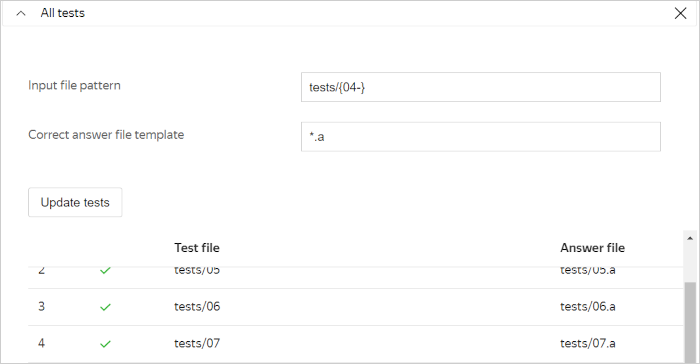
- At the bottom of the page, find the Test sets section and click the line All tests.
- In the Input file pattern field, specify the path to the test files and test numbers in brackets, for example:
tests/{01-04}to add tests one to four andtests/{05-}to add test five and all subsequent tests. - In the Correct answer file template field, specify the extension for the answer files, for example:
*.ato add all files with names that match the test names from step 3 and have the extension.a. - Click Update tests.
6. Make sure the problem works correctly (optional).
To make sure the program works correctly, you need a solution in any supported programming language.
To submit a solution:
- In the section on the left, select Tests and solutions and click Add solution.
- Select the file with the solution source code in any supported programming language or upload it by clicking Select file and finding the desired file on your computer.
- In Solutions, click your solution and select the compiler that is suitable for running the solution.
- Click Submit.
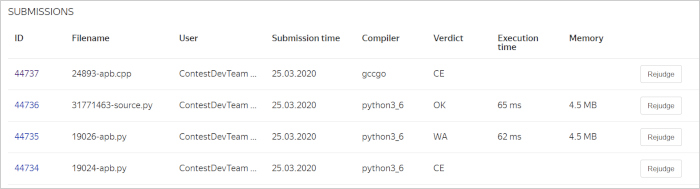
There are different ways to view detailed reports of submission testing:
- In the Submissions section, click the desired submission's ID.
- Alternatively, you can click Rejudge to rejudge the submission.
Note
When rejudging, a new environment is created for the submission based on the problem's current settings. If a submission was sent when there was only one test, and later another test was added, the submission will undergo two tests.