Problemset settings
To create a problemset:
1. Go to the Problemsets section and click Create new set.
2. Enter a name and click Create.
A page with the set settings will open.
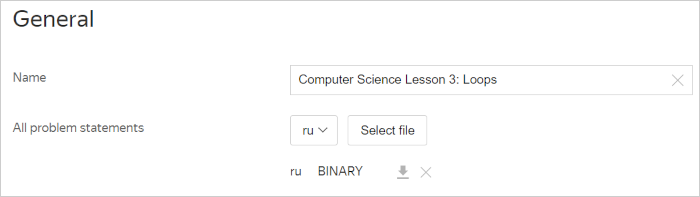
General
Name
The name is displayed in the problem list. To change a name, enter another name and click Save at the bottom of the page.
All problem statements
Contest participants have access to all problem statements and can download them quickly and conveniently.
To upload all problem statements:
1. Select a language: ru for Russian or en for English.
2. Click Select file and upload the desired one.
3. Click Save at the bottom of the page. The new statement will appear in the problem statement list.
The language and file format are specified for each statement. There are icons alongside that you can use to download and delete statements.
Contests with this problemset
Note
If this option is missing, it means this problemset is not linked to any contest.
This is a list of contests that this problemset is linked to. The name of each contest is a link to the corresponding contest's settings.
You can unlink a problemset from a contest in the contest settings.
Problems
You don't have to change settings for each individual problem. Instead, you can set up the whole problemset.
Settings for all problems
To update problemset settings, upload the archive with the JSON files containing the problem settings. The names of these files must match the short names of problems.
To update problem settings:
1. Go to Problems, click Select file next to Settings for all problems, and upload the desired file.
2. Click Save at the bottom of the page. The archive will be unpacked, and the settings will apply to problems according to the JSON file names.
Add solutions to problems
To add solutions to problems, upload an archive with directories. The names of these directories must match the short names of problems. Each such directory must contain solution files.
To add solutions:
1. Go to Problems, click Select file next to Add solutions to problems, and upload the desired file.
2. Click Save at the bottom of the page. The archive will be unpacked and the settings will apply to problems according to the directories' names.
Upload tests for problems
To add tests for problems, upload an archive with directories. The names of these directories must match the short names of problems. Each directory can contain files and other folders.
To add tests for problems:
1. Go to Problems, click Select file next to Upload tests for problems, and upload the desired file.
2. Click Save at the bottom of the page. The archive will be unpacked and the files will be added to problems according to the root directories' names. The files will be added to the test problems folder maintaining the archive hierarchy.
Number problems
You can organize problems using either letters (A-Z) or numbers (1-9). This value becomes the short name of a problem within the set. The short name of a problem is displayed in the participant interface.
To number problems, click the button with the selected numbering type:

Problem management
Add a problem to a set
- At the bottom of the page, click
 .
. - Start typing the name of the problem.
- Select one or more problems from the list.
- Click Add. The problems will be added to the main list.
- At the bottom of the page, click .
- Go to the Import from set tab.
- Start typing the problemset name.
- Select the problemset from the list. Problems from this problemset will appear in a separate list.
- Click Add. The problems will be added to the main list.
Change the short name of a problem
The problem list contains the short and full names of problems.
To change the name of a problem:
- Click the problem name.
- On the settings page in the General section, enter a new short name.
Change the order of problems
Problems are displayed in the same order that contest participants with this problemset see them.
To change the problem order, hover over the row with the problem, left-click, and drag the item to the desired position.
Remove a problem from a problemset
If you want to remove a problem from a set, click  in the row with the desired problem.
Problemset management
Update a problemset from a file
You don't need to update problemset settings manually. Instead, you can update them all at the same time from a file.
- Go to Problemsets and open the desired problemset.
- Click Update from file.
- Select the file on your computer.
- Click Update. Problemset settings will be updated.
Delete a problemset
If a problemset is not linked to a contest, you can delete it.
To delete a problemset:
- Go to Problemsets and open the desired problemset.
- Click Delete problemset.
- Click Delete. This will delete the problemset and open the problemset list.