Statements
Statements contain all the information needed to solve a problem.
In Yandex Contest, the correct answer is displayed as an HTML page generated using the TeX syntax (variation of the LaTeX markup language). You can also provide a statement as a file. A download link to the file will be featured on the problem page in the participant interface.
Add a problem statement
- Select Statements on the left.
- Select a statement type: TeX, binary statement, or olymp.sty.
- Select ru for Russian or en for English.
- On the right, click Add statement.
- Click the row with the added statement, for example:
Russian (tex). - Enter the statement in the form and click Save.
If you want to delete a statement, click  in its row.
Select a statement generation method
Contest participants see problem statements as an HTML file in the browser. There are several ways to create a problem statement.
Depending on whether Use an alternative renderer is enabled in the general problem settings, TeX statements need to be marked up in different ways.
Statement markup in the Markdown + KaTeX format does not depend on the renderer.
Markdown + KaTeX statement
Use Markdown markup:
The constructs described in version 0.13.0 of the official documentation are supported for KaTeX.
Note
Surround all KaTeX constructs with the symbols for strings and the $$...$$ symbols for blocks. Don't use Markdown markup inside $$...$$ block constructs.
To insert a gap between paragraphs (an empty paragraph), use the following construct:
{br}
To add a drop-down block, use the following construct:
!>Drop-down block title
Text in the drop-down block
!><
Note
Always leave an empty row before the beginning of drop-down blocks. Always insert a line break before and after closing symbols !<.
Use a special construct to insert images:
{:style="width: 300px;"}
alt-text: The text that appears when hovering over the image (alternative text).statements/statement-image.png: The path to the image file in the problem files (file named statement-image.png in the statements directory).{:style="width: 300px;"}: An optional block with a description of the element styles (you can set the key css properties for the image).
The shortest record may only contain the path to the image and look like this:

Example of statement that uses Markdown + KaTeX
An element definition symbol from the *periodic table* is fed to the program as input.
The program must return the relative atomic mass of the specified element, rounded to the nearest **integer**.
For example, for an oxygen atom $O_{16}$: **0** is fed as the input and **16** is expected to be returned as the output
{br}
{:style="width: 100%;"}
Inserting Statements and Limits in the description for the participant
In the Markdown + KaTeX renderer, you can use the Insert limits and samples into statement option. If this option is enabled, a block with time and memory limits for all and specific programming languages is added at the beginning of the statement, and the input and answer code from the test files from the samples set is added to the end of the statement block.
If the option is disabled, a hint is displayed in the statement. Use syntactic constructs to insert limits or samples in the statement text:
\samples: Adds statements from the samples test set.\limits: Adds the limits specified in the problem settings.
TeX statement
A statement is divided into 4 blocks:
- Legend: The main problem description.
- Input format: Description of the input data format fed to the program.
- Output format: Description of the output data format expected at the program's output.
- Notes: Any additional information for participants about this problem.
You don't have to fill in each block, but we recommend filling in the main statement so that participants have a problem statement available.
To see the generated statement, click  :
:
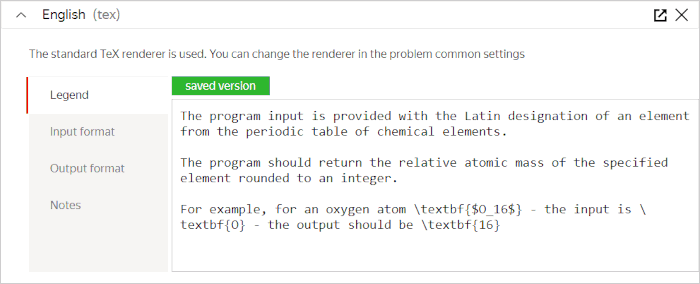
Frequent syntactic constructions of the language
|
Action |
Syntax |
|
Make text bold |
|
|
Italicize text |
|
|
Underline text |
|
|
Insert superscript or subscript |
Note Functions with a special symbol should be framed with |
|
Insert a table |
Result of table rendering:
|
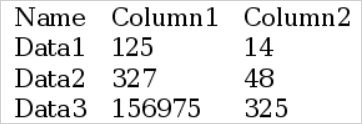
You can also use other constructions and special characters of LaTeX. Such structures should be framed with $ on both sides.
Rendering errors
If you make a syntax error, you will see a notification with its decryption after saving the statement. The statement text will be saved, but the problem statement won't be displayed in the participant interface until you correct the statement and save it again.
Binary statement
This is a downloadable file:
- Archive (any format, though we recommend 7-Zip or ZIP).
- Text statement in TXT format.
- PDF.
Olymp.sty statement
This is a file in the olymp.sty markup. The file is automatically converted to a TeX statement and saved in the system.