Internal and external users
There are external and internal users in Yandex Contest. All users can:
- participate in contests;
- start competing in a contest (if individual start is allowed);
- send submissions in the contest.
External users
External users have a Yandex account. Access rights to the admins panel are granted to this account. External users:
- log in to Yandex Contest with their Yandex ID;
- are displayed in the system under their username as they can be added to contests and seen on leaderboards;
- can register themselves in contests if registration is open;
- must have access to Yandex services and hosts to log in and work;
- can also register other Yandex accounts that Yandex Contest considers external.
Choose external users if you are hosting a public contest that users can join on their own. Do not choose external users if you host offline events in educational institutions.
Internal users
Internal users are created within the Yandex Contest system. Internal users:
- are authorized on special Yandex Contest domains;
- are displayed in the system under their identification username;
- can have a new password generated by the system;
- cannot register for contests on their own; they are added by the administrator;
- cannot register other accounts of the same type in Yandex Contest themselves;
- can use a computer with limited internet access (only to Yandex Contest hosts);
- cannot use their Yandex Contest username to log in to other Yandex services.
Access to internal user creation and management is only given by request. To request access, write to us at support@contest.yandex.ru and tell us:
- Why doesn't Yandex ID authorization work for you?
- What contests are you hosting?
- How many users you want to create.
Choose internal users if you host a contest in educational institutions. This way, you'll be able to monitor who solves problems using the username and password issued beforehand, and how they do it. Do not use internal users if you host a public contest with open registration.
Create internal users
In the Internal users section, you can create a user or a new password for any user.
To create an internal user:
- Go to Internal users.
- Click Create new user.
- Enter a username and click Create new user. A file with the user's username and password will be saved on your computer.
To create multiple internal users:
-
Go to Internal users.
-
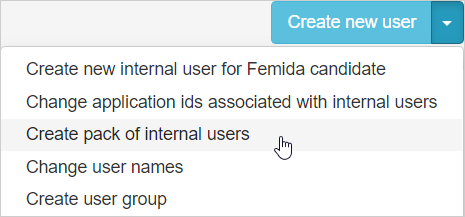
Click Create new user and select Create pack of internal users.
-
Enter the prefix of the user group's internal username. The group prefix must be unique. Try not to repeat the prefixes in Yandex Contest.
-
Specify the first user index and the number of users you want to create. For example, you need to create 25 users for a group of students. Come up with a prefix like
gr21017_2020_and specify 1 as the first index and 25 as the last. -
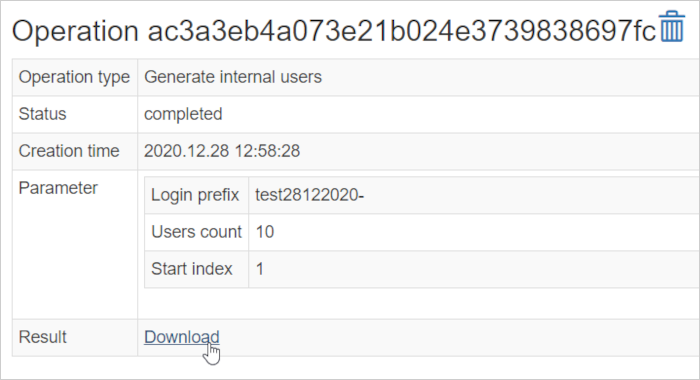
Click Create users. A download link for a file with usernames and passwords will appear.
Note
You can add users to a group already in use by changing the start and end indexes. But we recommend creating a few more users in advance.
Logging in for internal users
To log in with an internal username, a participant needs to:
- Go to official.contest.yandex.com.
- In the upper-right corner, click Log in.
- Enter the internal user's username and password. You can click the eye icon in the password field to temporarily show the characters you typed.
The user can then proceed to the contest on the same domain.
For example, you generated an internal username and password for the user and created a competition available on contest.yandex.com/contest/3. If the user follows that link, their domain will change from official.contest.yandex.com to contest.yandex.com. To make sure the user doesn't get lost and ends up at the contest, we give them the link official.contest.yandex.com/contest/3.
User participation in contests
You can use internal and external users in a single contest. To do this, external users must use the primary domain https://contest.yandex.com and log in via Yandex ID. Internal users should use the domain https://official.contest.yandex.com.
Open registration does not apply to internal users: an administrator must add them to the contest.
User groups
You can create user groups to:
- register the same group of people for different contests as participants;
- add the same administrators or judges to different contests;
- grant multiple users access to a problemset at the same time.
To view the list of available groups, go to User groups. Here you can search for groups by the owner's username, group name, or group ID; search by name and username is case-insensitive. You can also create and edit groups.
Note
A group belongs to one type: with external (passport) or internal users. Special actions (for example, generating new passwords) are available only for groups of internal users. Groups with a mixed composition are locked for editing.
Example
You are hosting a course on learning a programming language. You have several groups of students and several contests. You don't have to add each student to the contest individually. Instead, you can add a group. All group members will be granted access to the contest.
Create a user group
To create a user group:
-
Go to User groups and click Create new group.
-
Enter a name for the group and click Create group. You can only use Latin letters in the name.
To create a group with internal users: -
Go to Internal users.
-
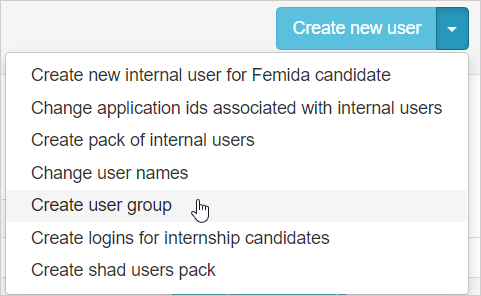
Click Create new user and select Create user group.
-
Enter the internal users' username prefix and the group name.
Edit group
To edit a group, click its name. You can:
-
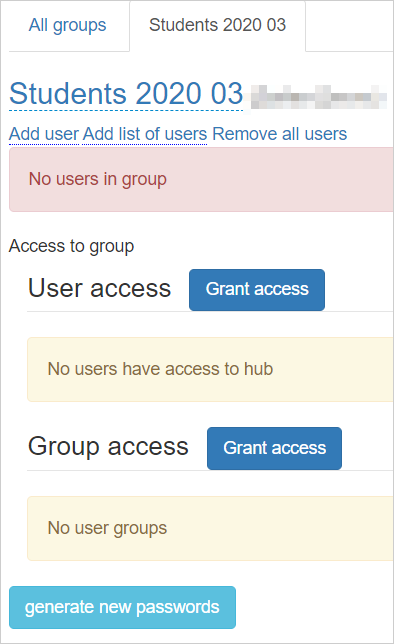
Change the group name (used for searching by group). To do so, click the group name. Enter the new name and confirm the action.
-
Add group members. To do so, click Add user. Enter the username of an internal or external user in the search bar and select it from the search results.
-
Add multiple users. To do so, click Add list of participants and list each participant in a new row.
- Add login without
@yandex.ruor@contest.yandex.ruto only search for users who have logged in to Yandex Contest. - Specify username and
@yandex.ruto find all external users, both those who have logged in and those who have never logged in to Yandex Contest. - Specify a username and
@contest.yandex.ruto search only internal users.
For example:
student-2020-03
student-2020-03@contest.yandex.ru
agent006
agent007@yandex.ru
Click Add participants. Refresh the page to display all added users.
- Add login without
-
Delete all users. To do so, click Delete all users from group and confirm the action.
-
Delete one user. To do so, click the
 icon in the row with the desired user's username.
 -
Generate new passwords for internal users. To do, click Generate new passwords at the bottom of the page, confirm the action, and download the file with usernames and passwords.
Warning
After creating new passwords, the old ones will no longer work.